How to Turn a Song into a Music Video with AI [2026 Guide]
Turn a finished song into a music video with AI. Learn the song-to-video workflow, when to use audio-file guides, genre tips, lip-sync choices, 16:9/9:16 output, and iteration steps.
![How to Turn a Song into a Music Video with AI [2026 Guide]](/_next/image?url=%2Fimages%2Fblog%2Fsong-to-video-ai.png&w=3840&q=75 "How to Turn a Song into a Music Video with AI [2026 Guide]")
Last reviewed: April 22, 2026. "Song to video AI" is the natural way many musicians describe the job: I have a finished song; I want a video for it. The best workflow starts with the song, not with a blank video timeline.
With VibeMV, you upload a finished audio file, let the AI analyze vocals, beats, sections, and energy, choose a visual direction, generate by segment, and export in 16:9 or 9:16. Current VibeMV facts: MP3/WAV/AAC/M4A input, 3 seconds to 5 minutes, 100 MB upload limit, 720p default, optional 1440p upscale where available, and 2 credits per generated second.
Which guide should you read next? This page focuses on turning one finished song into a video. For file-format details, upload limits, and MP3/WAV preparation, use AI Music Video from Audio File. For the complete AI production process, read How to Make a Music Video with AI. If you want to start generating, use the AI music video generator.
Direct Answer: Finished Song to AI Music Video
- Upload the finished song in MP3, WAV, AAC, or M4A.
- Let AI analyze the track for sections, vocals, beats, and energy.
- Choose a visual concept that matches the song's genre and mood.
- Use normal mode, lip-sync mode, or both depending on where vocals appear.
- Generate in the target aspect ratio: 16:9 for YouTube, 9:16 for vertical social.
- Review the full video and regenerate only weak sections.
- Export and repurpose the strongest moments for teasers, Canvas-style loops, and social clips.
Which Page Should You Use?
| User intent | Best page | Why |
|---|---|---|
| "I have a finished song. Make it a video." | This page | Creative song-to-video workflow |
| "What file type should I upload?" | AI music video from audio file | Formats, file size, audio prep, upload limits |
| "How does the whole AI process work?" | How to make a music video with AI | Complete step-by-step AI tutorial |
| "I only need a simple audio visual." | Music visualizer | Lightweight teaser, waveform, beat-reactive visuals |
| "I want synced lyrics." | Lyric video maker | Text-first music video asset |
Step 1: Start with the Best Section of the Song
For a full release, you may render the whole song. For testing, start with the section that will tell you the most:
- Chorus: best for hook, lip-sync, and social clips
- Drop: best for EDM, visualizers, and beat-synced scenes
- Verse: best for narrative, rap, and character performance
- Bridge: best for testing contrast and mood shift
VibeMV's free tier includes 50 credits, which is about 25 seconds at 2 credits per second. That makes the hook or chorus the best free test target.
Step 2: Match the Workflow to the Genre
| Genre or song type | Recommended approach |
|---|---|
| Pop / singer-songwriter | Lip-sync for vocal sections, normal mode for intro and bridge |
| Rap / hip-hop | Lip-sync for clear slower passages; normal mode for very fast or heavily processed sections |
| EDM / electronic | Normal beat-synced visuals for drops and builds; lip-sync only for featured vocals |
| Instrumental / ambient | Normal mode, abstract visuals, visualizer-style motion |
| Acoustic / piano | Stronger narrative prompts; subtle motion and lighting changes |
| Cover songs | Check rights and platform rules before publishing; see the cover song guide |
The point is not to force every song into the same template. A vocal ballad and an instrumental electronic track need different video logic.
Step 3: Let the AI Analyze the Song
After upload, the AI looks for section boundaries, vocal regions, and energy changes. That analysis determines how the song becomes video segments.
Review the analysis before rendering. If the song has unusual structure, long silence, tempo changes, or a quiet vocal, you may need to adjust segment boundaries or mode choices. The earlier you correct structure, the fewer credits you waste.
Step 4: Choose a Visual Direction
Write visual direction that matches the song's emotional center. Avoid generic prompts like "make it cinematic." Give the model concrete choices:
- Subject: vocalist, avatar, landscape, room, city, abstract shape
- Environment: stage, bedroom, desert, street, underwater, surreal space
- Lighting: neon, moonlight, warm tungsten, soft window light
- Palette: black and red, blue and silver, warm gold, monochrome
- Camera feel: handheld, slow dolly, close-up, wide shot
Example:
"A lone vocalist in a small late-night studio, warm lamp light, rain on the window, muted amber and blue palette, slow close-up camera movement, intimate and melancholic."
Step 5: Decide Where Lip-Sync Helps
Lip-sync is powerful when a viewer should connect with a performer or character. It is less useful during intros, solos, abstract drops, or sections where the vocal is too processed for reliable mouth movement.
Use a mixed plan:
- Intro: normal mode
- Verse: lip-sync
- Chorus: lip-sync or high-energy normal mode
- Instrumental break: normal mode
- Final chorus: lip-sync with stronger visual intensity
For a deeper feature guide, read AI lip-sync music videos and turn a song into a lip-sync music video.
Step 6: Generate, Review, and Iterate
Do not judge the workflow from the first render alone. Review it like an editor:
- Do section changes feel musical?
- Does the chorus look stronger than the verse?
- Are character shots used where they matter?
- Are there 2-3 weak segments that should be regenerated?
- Would the song work better as 16:9, 9:16, or both?
Regenerating a few segments is usually more efficient than regenerating the whole song. Adjust the prompt, switch mode, or choose a different visual direction only where the video is weak.
Step 7: Export and Repurpose
A finished song video can become more than one asset:
| Asset | Source section | Format |
|---|---|---|
| YouTube music video | Full song | 16:9 |
| TikTok / Reels hook | Chorus, drop, lyric punchline | 9:16 |
| YouTube Shorts teaser | Strongest visual moment | 9:16 |
| Spotify Canvas-style loop | 3-8 second motion loop | 9:16 |
| Press kit clip | Best polished segment | 16:9 or 9:16 |
For social-specific strategy, read best AI platform for social media music videos.
Frequently Asked Questions
How do I turn a song into a music video with AI?
Upload the finished song, let the AI analyze sections and vocals, choose a visual style, select normal or lip-sync mode by section, generate, review, regenerate weak segments, and export.
What is the difference between song-to-video AI and an audio-file guide?
Song-to-video AI is the creative workflow for a finished track. The audio-file guide covers the technical details: MP3/WAV/AAC/M4A, bitrate, file size, length limits, and upload preparation.
What songs work best?
Songs with clear structure are easiest: verses, choruses, drops, bridges, or instrumental breaks. Vocal-heavy songs benefit from lip-sync. Instrumental and electronic tracks often benefit from beat-synced or abstract visuals.
Can I create vertical videos for TikTok and Reels?
Yes. Choose 9:16 before generation for TikTok, Reels, and Shorts. Choose 16:9 for standard YouTube releases. If you need both, render both versions from the same storyboard.
How many credits does it use?
VibeMV uses 2 credits per generated second. A 30-second test clip uses about 60 credits, a 3-minute song uses about 360 credits, and a 5-minute song uses about 600 credits before optional upscale or regeneration.
Is a music-specific AI tool better than a general video generator?
For a finished song, usually yes. A music-specific workflow handles segmentation, beat-aware pacing, and optional lip-sync. A general video model can create strong clips, but assembly and sync are usually manual.
Start with One Song
Pick one finished song and one target output. If you want proof before spending paid credits, test the strongest 25 seconds first. If the result fits the track, render the full version and cut social assets afterward.
Start with the AI music video generator, or use AI music video from audio file if you need more detail on formats, upload limits, and file preparation.
More Posts
![Audio to Video AI: Complete Guide to Converting Sound into Visuals [2026]](/_next/image?url=%2Fimages%2Fblog%2Faudio-to-video-ai-guide.png&w=3840&q=75 "Audio to Video AI: Complete Guide to Converting Sound into Visuals [2026]")
Audio to Video AI: Complete Guide to Converting Sound into Visuals [2026]
Turn any audio file into video with AI. Covers music videos, podcast clips, visualizers, and audio-video sync — with tool comparisons, workflows, and pricing for each use case.

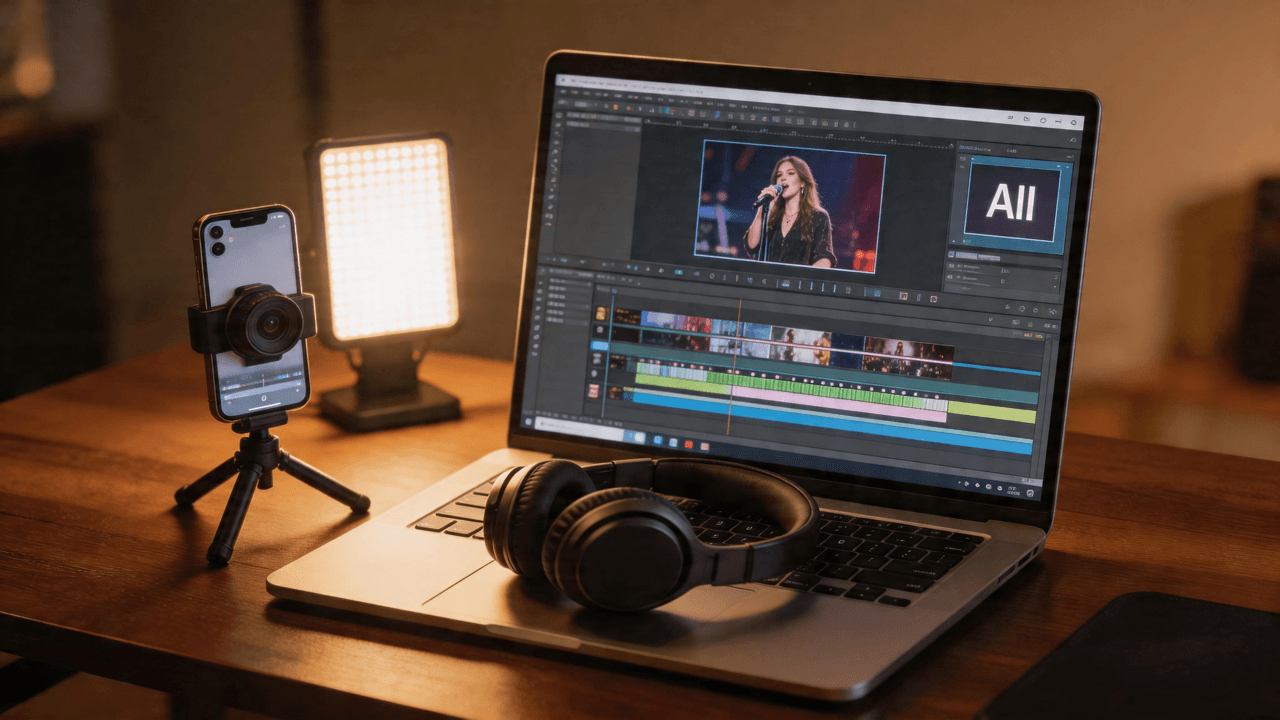
How to Make a Music Video in 2026: Complete Beginner's Guide
Learn how to make a music video with AI, phone footage, or a traditional production workflow. Compare methods, budgets, formats, and next steps for YouTube, TikTok, and Instagram.
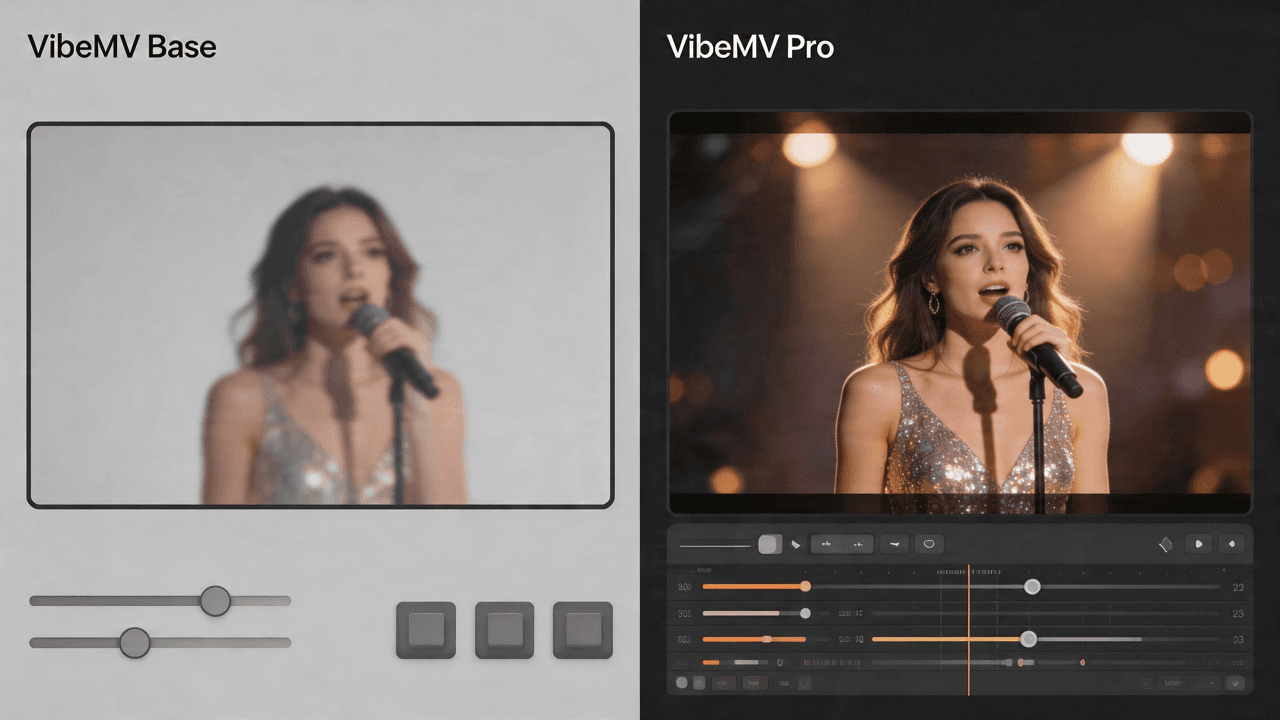
VibeMV Base vs Pro: Which Model Tier Should You Choose?
Not sure if VibeMV Pro is worth 6x the credits? This guide breaks down exactly when Base is enough and when Pro makes a visible difference — with real cost examples.